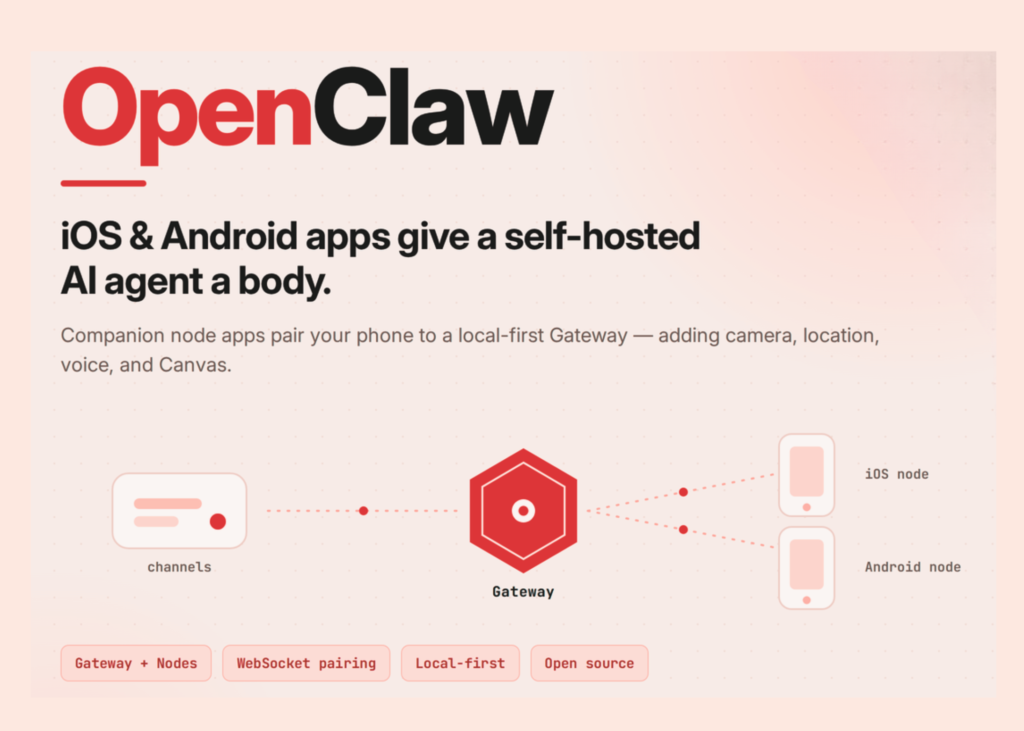
OpenClaw has released native companion apps for iOS and Android that turn smartphones into nodes for a self-hosted AI gateway. The applications are free and available on the App Store and Google Play. They do not function as standalone chatbots. Instead, each phone connects to a separate Gateway running on a computer or server. This separation defines the system’s design.
Core architecture
Peter Steinberger created OpenClaw as an independent, open-source personal AI assistant. The project is not affiliated with Anthropic. The core code uses TypeScript and runs on Node 24 or Node 22.19+. You manage the agent through standard messaging platforms like WhatsApp, Telegram, Discord, Slack, Signal, or iMessage. The tool can browse the web, execute shell commands, and read or write files. It supports local models or hosted subscriptions where you supply your own API key. The software retains persistent memory and accepts community plugins.
How the Gateway and Nodes interact
The Gateway acts as the single control plane. It manages sessions, routing, channels, tools, and events. You run one Gateway process on your own machine or server. Chat messages always arrive at the Gateway, never directly on a mobile device. A node is a companion device that links to that Gateway. Connections happen via WebSocket on port 18789. Each node registers with role: "node" during the pairing process. Nodes expose commands through node.invoke, covering functions like canvas.*, camera.*, device.*, notifications.*, and system.*. The documentation states clearly that nodes are peripherals, not gateways. Apps find the Gateway on a local network using mDNS or Bonjour. For remote access, the developers recommend Tailscale with a wss:// endpoint.
What the mobile apps provide
The phone supplies the agent with a physical body. It grants access to specific hardware for your workflows. The iOS app pairs via QR code or a setup code. It supports chat, real-time Talk mode, and background approvals. You can send text, links, and media from the iPhone to OpenClaw. Optional features include the camera, screen access, location, photos, contacts, calendar, and reminders. The Android app serves as a companion node rather than a standalone gateway. It offers streaming chat replies, image attachments, and full session history. Talk Mode uses ElevenLabs or the system’s text-to-speech engine. A live Canvas surface allows the agent to render dashboards. Android grants permissions individually. A foreground service maintains the connection to the Gateway.
Feature comparison
The following table outlines the differences between the iOS and Android implementations.
Capability breakdown
- Role: Both operate as companion nodes.
- Pairing: iOS uses QR code or setup code; Android uses a setup code or manual host/port entry.
- Chat: iOS allows chat from the iPhone; Android provides streaming replies, image attachments, and full history.
- Voice: iOS supports real-time and background Talk mode; Android uses Talk Mode via ElevenLabs or system TTS.
- Canvas: Both offer a live Canvas surface for rendering.
- Device capabilities: iOS accesses the camera, screen, location, photos, contacts, calendar, and reminders. Android grants access to the camera, photos, screen capture, location, notifications, contacts, calendar, SMS, and motion sensors.
- Approvals: iOS lets you review actions from the iPhone; Android manages them on the Gateway.
- Data collection: Neither app declares data collection in their store listings.
- Requirements: iOS needs version 18.0+ and a running Gateway. Android requires a Gateway on macOS, Linux, or Windows (WSL2).
Practical examples
Imagine collecting data on a construction site. The agent uses the iOS camera to photograph conditions and tags the image with GPS coordinates. Consider a context-aware reminder. The agent triggers a task when you arrive at a specific location. Think of an incoming notification on Android. The agent reads the message and drafts a reply. Visualise a live dashboard. The agent pushes a Canvas surface to your screen. Hands-free use is possible via Talk Mode, which maintains a continuous voice conversation. One limitation applies to camera and screen capture. These functions require the app to be in the foreground. Background calls return an error.
Pairing a phone
First, run the Gateway on a supported host.
# On the Gateway host (macOS, Linux, or Windows via WSL2)
npm install -g openclaw@latest
openclaw onboard --install-daemon
Next, open the app and select a discovered Gateway, or enter the host and port manually. The app connects with role: "node" and sends a device pairing request. Approve it from the Gateway CLI.
openclaw devices list
openclaw devices approve <requestId>
openclaw nodes status        # confirm the node is paired and connected
Privacy-heavy commands stay off by default. Examples include camera.snap, camera.clip, and screen.record. You opt in explicitly through gateway.nodes.allowCommands in your configuration.
// ~/.openclaw/openclaw.json
{
  gateway: {
    nodes: {
      allowCommands: ["camera.snap", "screen.record"],
    },
  },
}
A deny list (gateway.nodes.denyCommands) always overrides the allowlist.
Security and approvals
Pairing credentials are stored on the device. Every node connection requires approval before it reaches the Gateway. The device pairing record acts as the durable role contract. Token rotation cannot upgrade a node into a different role. Camera and screen capture are permission-gated and run only in the foreground. Cleartext ws:// connections are limited to LAN and .local hosts. Public or Tailscale endpoints require a proper wss:// TLS endpoint.