For developers and makers, the GitHub Copilot CLI has evolved from a simple assistant into a command-line powerhouse. The latest updates introduce a suite of slash commands that put you in the driver’s seat. Instead of passively waiting for suggestions, you can now actively steer the AI, manage your context window, switch between different reasoning engines, and audit your work directly from the terminal. This level of granular control is essential for professionals who need to balance speed with precision in their coding workflows.
Understanding slash commands in GitHub Copilot CLI
At the heart of this new functionality are slash commands. These are native controls accessible directly within the command line, acting as your primary interface for directing the AI. They allow you to:
- Direct Copilot’s behaviour and capabilities
- Review and inspect code changes
- Manage context and token limits
- Navigate efficiently between projects and sessions
- Control tool permissions securely
Think of them as a command centre. To view the full menu of available options, simply type / in your terminal to reveal a scrollable list of every supported command.
Selecting the optimal model
Not every coding task requires the same level of processing power. To switch between different AI models, enter /model in the command line. This command displays a menu of available engines, highlighting key distinctions such as:
- Capabilities: Some models excel at lightweight tasks like refactoring, while others are better suited for complex reasoning and feature planning.
- Availability: Access to specific models depends on your subscription plan or organisational settings.
- Cost: A cost multiplier is displayed next to each option, helping you weigh performance against your budget.
Choosing the right engine for the job can drastically improve both the speed of generation and the quality of the output.
Managing context and token usage
The CLI operates within a context window, which dictates how much information the AI can retain during a session. To monitor your remaining capacity, type /context. This reveals your current token count, system usage, and available buffer.
If you find you are approaching the limit, you can manually summarise the conversation to free up space by typing /compact. This condenses the chat history, allowing you to continue without starting over. While the system handles this automatically near the limit, manual intervention is useful when shifting to a new task or cleaning up mid-session.
For a complete reset, use /clear to wipe the session entirely.
Continuing across sessions
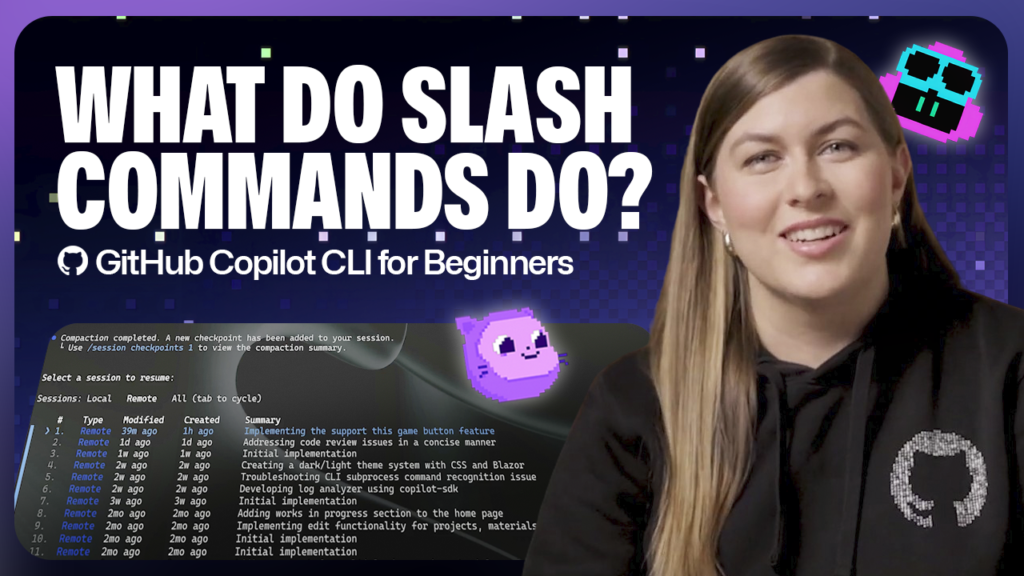
Development is rarely a linear process. To pick up where you left off, type /resume. This command lists your local and remote session history, allowing you to re-enter a previous conversation and continue work seamlessly.
Inspecting code changes
When the AI modifies your codebase, verification is crucial. Run /diff to view a clear summary of recent updates. This provides a transparent view of exactly what was altered, ensuring you validate changes before committing them.
Navigating projects and directories
You do not need to exit the CLI to switch between repositories. Use /cwd to change your working directory to a different project. This scopes the AI’s attention to a specific folder, enabling efficient multitasking across multiple codebases without losing context.
Managing tool permissions
Security is paramount. Previously, you may have granted the CLI permission to execute actions like file editing. If you need to revoke these abilities-perhaps when moving to a new repository where you want to exercise more caution-you can reset permissions by running /reset-allowed-tools.
Take this with you
Mastering these slash commands transforms the Copilot CLI from a passive tool into an active partner. The more you utilise these controls, the more deliberate and efficient your development workflow becomes. Whether you are optimising model selection, managing your context window, or navigating complex project structures, these commands ensure you maintain full control. Open your terminal, type /, and start exploring the full suite of capabilities.
Key takeaways
- Slash commands provide direct control over the Copilot CLI, allowing you to guide behaviour, manage context, and navigate projects without leaving the terminal.
- Use
/modelto switch between engines optimised for different tasks, balancing cost and capability for your specific needs. - Monitor token limits with
/contextand manually summarise with/compactto prevent session interruptions. - Enhance security and workflow efficiency by inspecting changes with
/diffand resetting tool permissions with/reset-allowed-tools.