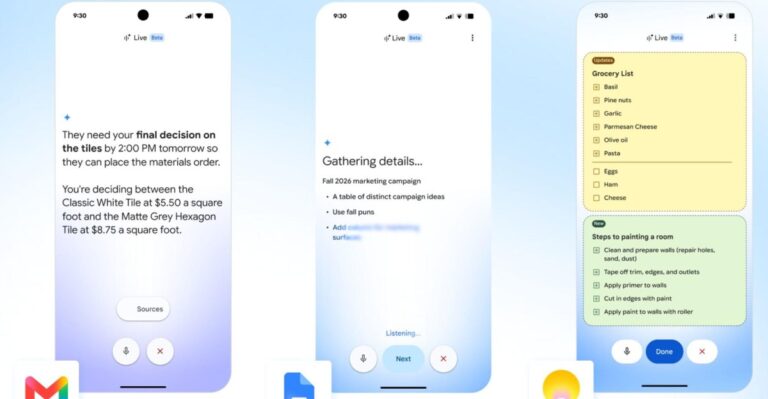

Google is forcing Gemini buttons into the user interface of Gmail and Google Docs, often without asking.
A large bar has appeared at the bottom of the screen for some users. I first saw this in April within my own account used for editorial collaboration. It seems to be a test pool feature, yet reports confirm it is appearing for others more recently. Availability varies.
How to remove the bottom bar
If you see the feature and wish to hide it, the process is simple.
Click the Gemini menu item, hover over Bottom bar preferences, and select Turn off.
The bar disappears immediately. It cannot affect your work once removed.
Removing all AI features
To banish the Gemini menu and other tools entirely, you have two options. One involves changing a setting in Gmail. The other requires a Chrome extension.
Personal accounts and company accounts follow different rules. Personal accounts use a standard @gmail.com address. Company accounts use Google Workspace and are managed by an employer.
For Workspace users, the administrator decides which AI features appear. Only the IT team can disable them. You cannot change this setting yourself.
Personal users have more control, but the path is not obvious. The necessary toggle is inside Gmail.
Open your Gmail account and click the gear icon in the top right corner. Select See all settings. Scroll down the General tab until you find the Smart features option.
Uncheck this box. Gmail will ask if you are sure. Confirm the change, then refresh your Google Docs window.
The Gmail setting does not mention Google Docs. Turning this off disables several other AI tools in Gmail, including grammar suggestions, autocorrect, smart compose, smart reply, and notification nudges. It also disables Gmail’s spellcheck, though your browser’s own spellcheck will still function.
If you do not need these Gmail features, the Gemini menu, the audio button, and the bottom toolbar should vanish from Google Docs. A Gemini button remains in the top right corner, but it is easier to ignore than the intrusive elements below. Google has a history of reversing such changes.
What it means
If the Gmail setting fails or you prefer keeping some smart features, install the Bye Bye Gemini extension for Chrome. This tool uses CSS to make AI elements invisible across Gmail, Docs, and Drive. It also removes AI Overviews from search results.
You are not required to use Google’s AI. Many users prefer alternatives like Claude, ChatGPT, or a local Ollama setup. Others wish to avoid AI completely. It is possible to disable these tools, though the steps are not straightforward.
A toggle to hide AI overviews in search results would be useful. Currently, the only working method is an extension that forces the search engine to use the Web section for every query. A native switch within Gmail or Chrome settings would improve the experience.